Your first login
StableHow to sign in to your aiapps365 account for the first time.
Last updated
When your account is set up, we send a magic-link email to the address on file. Clicking the link signs you in once and lets you choose a password for next time.
Step 1 — Open the email
The subject reads "Set up your aiapps365 account". The sender is support@aiapps365.com. Check your spam folder if you don't see it within 5 minutes — Gmail occasionally filters first-time senders.
Step 2 — Click "Sign in"
The button takes you to https://aiapps365.com/client/login. Your session activates automatically — no password needed for this first visit.
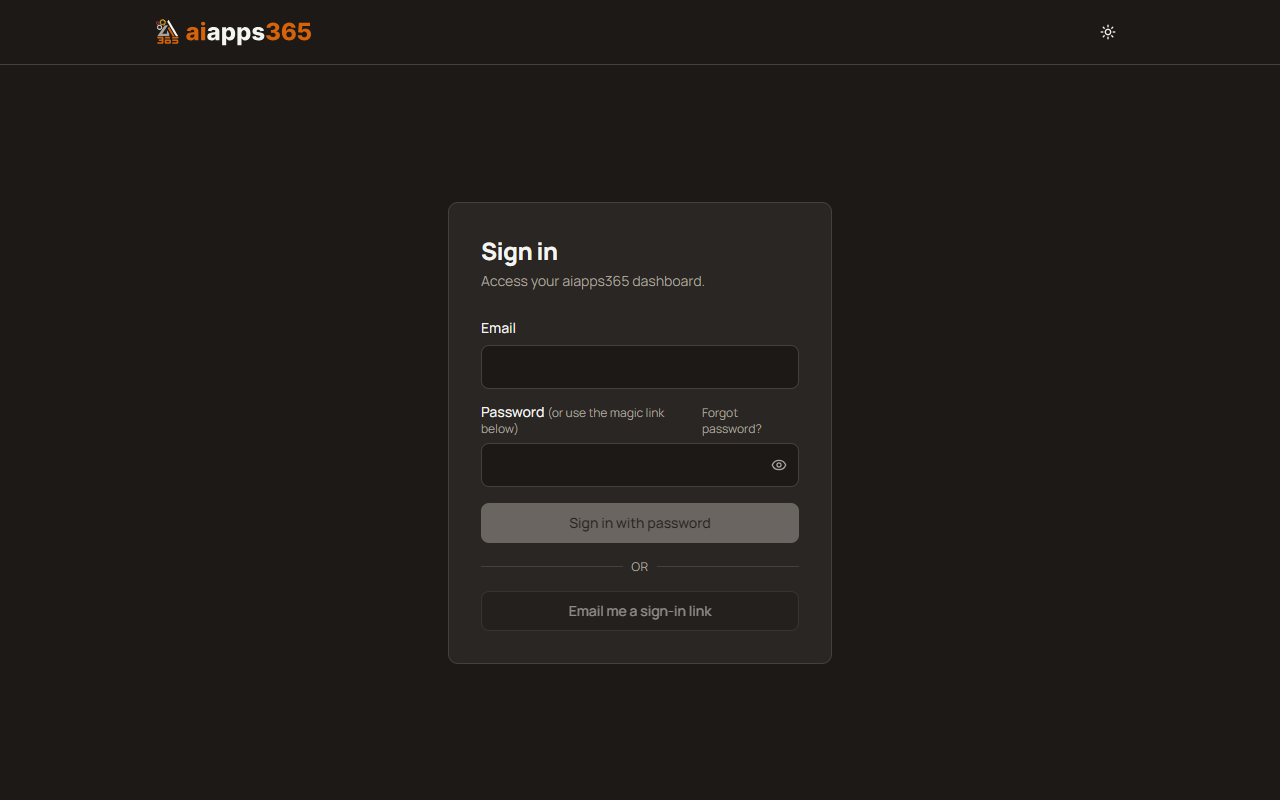
Step 3 — Set your password
On the dashboard, click your name (top-right) → Account settings → Change password. Pick something memorable but strong (12+ characters, mixed case, a number). You'll use email + password next time.
Forgot your password later?
Click Forgot password? on the sign-in page. You'll get a one-time reset link.
Heads up
The magic link expires in 1 hour. If it's expired by the time you click, use the Forgot password? flow to request a fresh link.
What you see after sign-in
You land on /client — your tenant dashboard. The left sidebar shows: Dashboard, Calls, Leads, Calendar, Customers, Jobs, Chats, Settings.
For your first session, head to Settings → AI Receptionist to configure how the AI answers your phone. That's covered in the next section.